Multi-Touch Attribution for Small Budgets
 Jonathan Harrington
·
·
9 min read
Jonathan Harrington
·
·
9 min read
Enterprise marketing teams have Rockerbox, full-time data scientists, and six-figure attribution platforms. You have Google Analytics and a spreadsheet. Here’s the good news: for most small businesses, that’s genuinely enough.
Multi-touch attribution sounds like something you need a data team to pull off. But if you’re spending money on more than one marketing channel — even just two or three — you’re already making attribution decisions. You’re just making them blind. A basic setup with free tools will get you 80% of the way there, and the other 20% probably wouldn’t change your decisions anyway.
Why Small Budgets Make Attribution Harder (and Easier)
Let’s be honest about the challenge. When you’re spending $2,000 a month on marketing instead of $200,000, you have far less data to work with. Fewer conversions means more statistical noise. One weird week can throw off your entire month’s numbers.
But here’s what most guides don’t tell you: small budgets also make attribution simpler. Enterprise companies have users touching 15 channels across 90-day buying cycles. Your customers probably interact with two or three channels over a week or two. That’s a much simpler journey to understand.
With fewer channels and shorter paths, you don’t need sophisticated modeling. You need consistent tracking and a willingness to look at the data once a month.
If you’re new to attribution entirely, start with our guide to understanding attribution models — it covers the foundational concepts this article builds on.
The Minimum Viable Attribution Setup
I’ve seen small businesses overcomplicate this badly. They install three analytics tools, set up 20 conversion events, and build dashboards they never check. Here’s what you actually need:
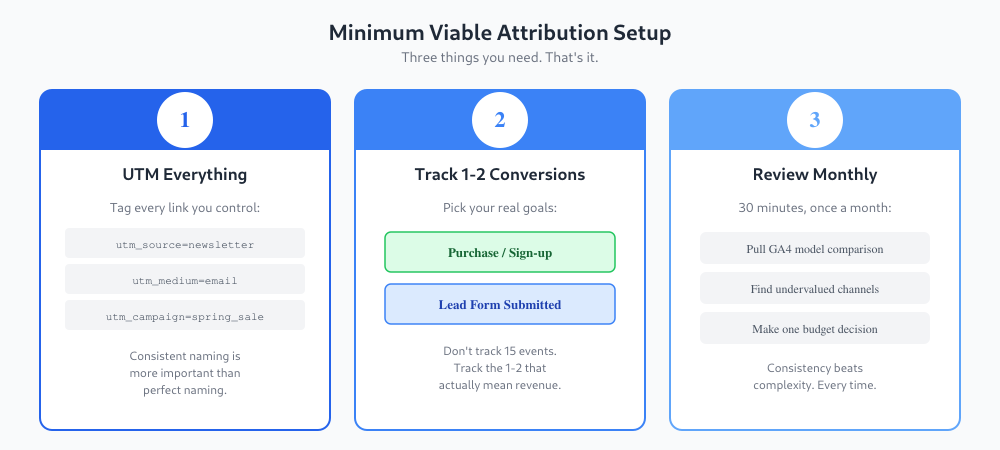
UTM Tag Every Link You Control
Every link in your emails, social posts, ads, and partner sites needs UTM parameters. Without them, GA4 lumps traffic into vague buckets like “direct” or “referral,” and your attribution data is useless.
You need three parameters at minimum:
utm_source— Where the click comes from (newsletter, facebook, google)utm_medium— The channel type (email, cpc, social)utm_campaign— Which specific campaign (spring_sale, product_launch)
The most important rule: be consistent. Pick a naming convention and stick with it. facebook and Facebook and fb are three different sources in GA4. Use Google’s free Campaign URL Builder to keep things uniform.
Track One or Two Real Conversions
In GA4, mark one or two events as key events (formerly called conversions). These should be things that actually represent revenue or serious intent:
- A purchase
- A form submission that leads to a sales call
- A sign-up for your paid product
Don’t mark page views, scroll depth, or “time on site” as conversions. Those are fine to track as events, but they’ll pollute your attribution reports with noise. Attribution only matters for outcomes that affect your budget decisions.
Review the Data Monthly
Not daily. Not weekly. Monthly. With a small budget and limited conversions, looking more frequently just leads to reacting to noise. Set a calendar reminder for the first Monday of each month. Thirty minutes is all you need.
Free Tools That Actually Work
You don’t need to spend money on attribution software. Here’s what works at the small-budget level:
GA4 Model Comparison Report
This is your primary tool. Go to Advertising > Attribution > Model comparison in GA4. It lets you compare how different attribution models credit your channels.
GA4 defaults to data-driven attribution, which uses machine learning to distribute credit based on how each touchpoint actually influences conversions. For small sites with limited data, it may fall back to something closer to linear attribution — that’s fine. It’s still more useful than last-click.
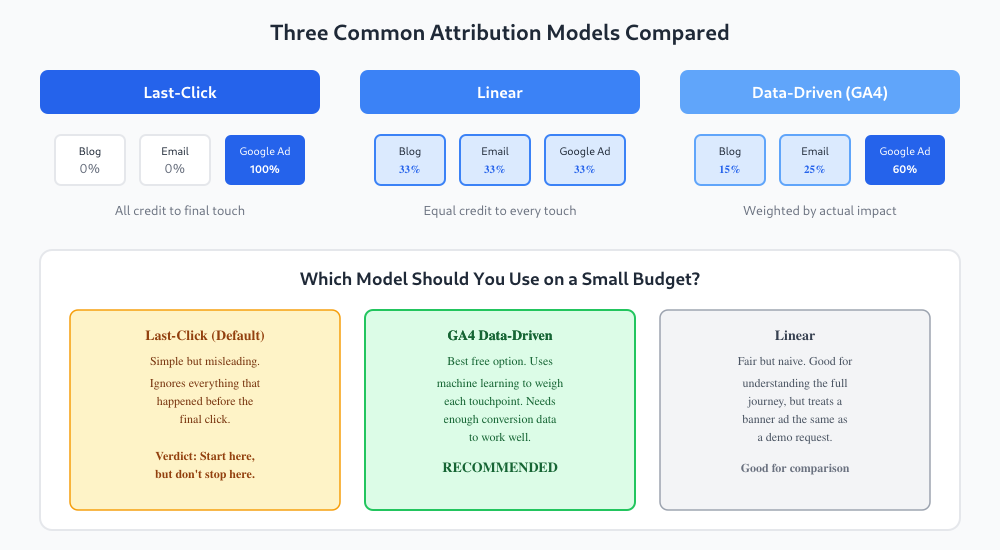
The model comparison report lets you toggle between data-driven, last-click, and other models. What you’re looking for are big discrepancies: channels that get lots of credit under one model but little under another. Those gaps tell you where you might be over- or under-investing.
Manual Export + Spreadsheet Analysis
For deeper analysis, export the GA4 data to a spreadsheet. You can do this directly from the model comparison report using the download button in the top right.
In your spreadsheet, create a simple table:
| Channel | Last-Click Conversions | Data-Driven Conversions | Difference | Assisted Conversions |
|---|---|---|---|---|
| Organic Search | 12 | 15 | +3 (under-credited) | 8 |
| Paid Search | 10 | 7 | -3 (over-credited) | 4 |
| 5 | 8 | +3 (under-credited) | 11 | |
| Social | 3 | 4 | +1 (under-credited) | 7 |
This kind of simple analysis is worth more than any expensive dashboard because you’re actually looking at it and making decisions.
The Assisted Conversions Report: What It Actually Tells You
In GA4, go to Advertising > Attribution > Conversion paths. This shows you the touchpoints users hit before converting.
The key metric here is the assisted/last-click ratio. Here’s how to read it:
- Ratio close to 0: The channel almost always closes the deal (last-click dominant)
- Ratio close to 1: The channel assists and closes equally
- Ratio above 1: The channel assists more than it closes — it’s an introducer or helper
The common mistake? Seeing a high ratio and cutting the channel because it “doesn’t convert.” That’s like firing your best salesperson’s assistant because the assistant’s name isn’t on the final contract. Channels with high assist ratios are often doing the invisible work that makes your last-click channels look good.
In my experience working with small-budget clients, email and organic content almost always show up as strong assisters. They warm people up, and then paid search or direct visits close the deal. If you only looked at last-click, you’d think email was useless.
When NOT to Bother With Multi-Touch Attribution
This is the part most attribution articles skip: sometimes multi-touch analysis is a waste of your time.
If 80% or more of your conversions come from a single channel, don’t bother with multi-touch attribution. Just optimize that channel. You don’t need a model comparison report to tell you that Google Ads is your main driver when the data is that clear.
Other situations where you can skip it:
- Fewer than 30 conversions per month. The data is too noisy to draw meaningful conclusions. Focus on getting more volume first.
- Only one or two active channels. Attribution is about distributing credit across channels. With fewer than three, there’s not much to distribute.
- Your average deal value is under $50. The time spent analyzing attribution likely costs more than the budget shifts would save.
If any of those apply, keep your UTM tagging clean (you’ll want it later), but spend your analysis time on measuring whether your ads are working at all rather than splitting credit between channels.
A Simple Monthly Attribution Review
Here’s the exact process I use with clients who have marketing budgets under $10,000 per month. It takes about 30 minutes.

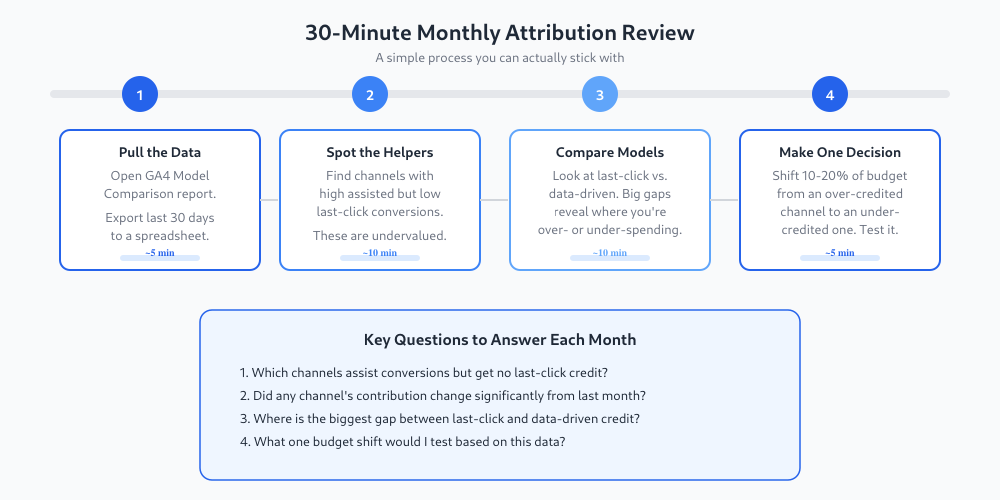
Pull the Data (5 minutes)
Open GA4. Go to Advertising > Attribution > Model comparison. Set the date range to the last 30 days. Export the data. Also check Conversion paths for the assisted conversion data.
Spot the Helpers (10 minutes)
In your spreadsheet, look for channels with high assisted conversions but low last-click credit. These are doing work that isn’t getting recognized. Common helpers include organic blog content, social media, and email newsletters.
Compare Models (10 minutes)
Look at the gap between last-click and data-driven attribution for each channel. If a channel gets 10 conversions under last-click but only 5 under data-driven, it’s probably getting more credit than it deserves. The reverse means it’s under-credited.
Make One Decision (5 minutes)
Based on what you found, make one budget or effort adjustment. Not five. One. Maybe it’s shifting 15% of your paid search budget to the email channel that keeps assisting conversions. Maybe it’s doubling down on organic content because it’s quietly driving more value than you thought.
Test it for a month. Review again. Repeat.
The point isn’t to build a perfect attribution model. It’s to make slightly better decisions each month than you would have made by guessing. Over a year, those incremental improvements compound.
Frequently Asked Questions
Do I need dedicated attribution software for a small marketing budget?
No. For budgets under $10,000 per month, GA4’s built-in model comparison and conversion path reports give you everything you need. Paid attribution tools like Rockerbox, Triple Whale, or Northbeam are designed for businesses spending $50,000+ per month across many channels. At smaller budgets, the free tools combined with a spreadsheet will surface the same insights that matter for your decisions.
How many conversions per month do I need for attribution data to be reliable?
Aim for at least 30 conversions per month before drawing conclusions from multi-touch attribution data. Below that threshold, random variation makes it hard to tell real patterns from noise. GA4’s data-driven attribution model specifically needs sufficient conversion volume to function properly — with too few conversions, it falls back to simpler models. If you’re under 30 monthly conversions, focus on growing that number before spending time on attribution analysis.
Should I use last-click or data-driven attribution in GA4?
Use data-driven as your default — it’s what GA4 recommends and it distributes credit more accurately by analyzing actual user behavior patterns. But don’t ignore last-click entirely. The value is in comparing the two models side by side. When a channel gets significantly different credit under each model, that gap tells you something useful about its role in your marketing. Use the model comparison report to see both at once.
What’s the best UTM naming convention for a small team?
Keep it simple: lowercase only, use underscores instead of spaces, and be specific enough to be useful but general enough to be consistent. For source, use the platform name (google, facebook, newsletter). For medium, use the channel type (cpc, email, social, referral). For campaign, use a descriptive name with the date or season (spring_2026_sale, product_launch_april). Document your conventions in a shared spreadsheet so everyone on the team uses the same terms. Inconsistent UTM tags are worse than no UTM tags at all.
Jonathan Harrington
I write practical, no-preamble guides on web analytics, privacy-friendly tracking and data-driven marketing — start with the problem, then pick the data.
More about me →